


Page 270 - Scratch Programming Playground
P. 270
the Cat sprite has some cool animations, and the backdrop
                         looks like a real video game.
                              Now all we have to do is make a game using all the pieces
                         we have. We’ll add an apple that appears randomly around the
                         Stage (similar to the Snaaaaaake game in Chapter 6) and add
                         a few enemies that try to touch the Cat sprite and steal the
                         apples.

                         17. Add the Apple Sprite and Code

                         Click the Choose sprite from library button and select the
                         Apple sprite from the Sprite Library window that appears;
                         then click OK.
                             as in previous games, we’ll use a variable to track the
                         game’s score. Click the orange Data category, and then click
                         the Make a Variable button to create a for all sprites vari-
                         able named Apples Collected. this variable will keep track of
                         the player’s score.
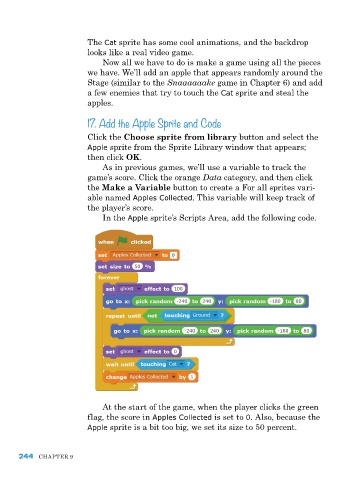
                             In the Apple sprite’s Scripts area, add the following code.


                             at the start of the game, when the player clicks the green
                         flag, the score in Apples Collected is set to 0. also, because the
                         Apple sprite is a bit too big, we set its size to 50 percent.


      244   Chapter 9

