


Page 17 - QC-Smart_ PSS- Manual_webb ENG_Neat
P. 17
Account  can also add and manage users with access to that recorder. If you are connected to an NVR,
 Just as you can authorize others to use your system, you can also create user accounts for   you may also add remote IP cameras to your system using the Remote Setting sub-menu.
 others to use Smart PSS to observe and control any connected recorders. The process is   Note that QC systems do not make use of the Serial Interface. The Auto Maintenance option
 the same as on your DVR or NVR. And, you can grant users specific permissions or limit their   is to allow the NVR or DVR to reset on a schedule for optimal performance.
 ability to make changes as needed.  System Info - Use the Log Information submenu to search and download activity logs from
 STEP 1. Open the Account window and   your system.
 select Add from the upper left.
 STEP 2. The Add User window will   TOUR
 open. Enter the new user’s name and   Just as with your recorder, you can have Smart PSS cycle through your cameras. In this case,
 password. You will also need to set   those cameras can be connected to many different systems.
 whether this user is a Manager or
 Operator. Additionally, you may add
 notes regarding this user.
 STEP 3. Select which rights this user
 is allowed from the User Authority
 menu. You can also limit which
 cameras and devices this user has
 access to using the Device List on the
 right of the window.
 STEP 4. Click Add to save the new
 account.
 Select Add More to add additional users
 without closing the window.

 PICTURE 3-81
 You can edit or remove a user account by
 clicking on that user’s name in the Account
 window and clicking on the Edit or Delete
 button respectively.


 Device Parameter Configuration
 This button is located in the lower left of the   PICTURE 3-82
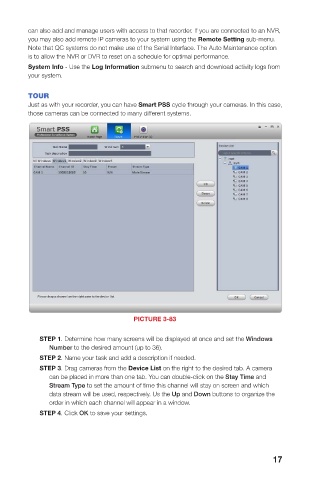
 Device Setup menu and opens up the Device Configuration window. This window contains   PICTURE 3-83
 menus granting access to more of your system’s functions . Detailed information on these
 funtions is contained in respective parts of the User Manual. Included menus are: Network,
 Event Manager, Storage Manager, System Configuration and System Info. Again, these   STEP 1. Determine how many screens will be displayed at once and set the Windows
 menus replicate those found on your recorder.  Number to the desired amount (up to 36).
 Network - The settings for your system’s connection to the network are located here.   STEP 2. Name your task and add a description if needed.
 Care should be given when altering these settings as changing them could result in loss of   STEP 3. Drag cameras from the Device List on the right to the desired tab. A camera
 connection to your recorder.  can be placed in more than one tab. You can double-click on the Stay Time and
              Stream Type to set the amount of time this channel will stay on screen and which
 Event Manager - This contains the remaining settings that were not included in Video
 Check, above. You can set responses for both the recorder itself and any other networked   data stream will be used, respectively. Us the Up and Down buttons to organize the
 systems. You are also able to configure the alarm responses for network conflicts, hard drive   order in which each channel will appear in a window.
 failure or full disk among others.  STEP 4. Click OK to save your settings.
 Storage Manager - This shows the status of your recorder’s hard drive(s).
 System Config - Many of these are found in your Settings menu on your system, including
 the general settings, such as the system language, date format, daylight savings time, etc. You
 16                                                                    17

