


Page 15 - QC-Smart_ PSS- Manual_webb ENG_Neat
P. 15
GENERAL  Audio/Video
 While most of the controls in Smart PSS are for operating your system remotely, the General   This window contains three tabs which allow you to control the settings for the video streams,
 Setting window is for controlling the program itself. There are two tabs in the General   snapshot quality and quantity along with privacy masks and on-screen display.
 settings window - General and File. The first tab, General, lets you perform some basic
 housekeeping.  Audio Video Stream - This tab allows you to make settings to optimize the video stream from
        each camera. This is the same as found in the Camera Settings window of your system. You
 Network - Adjust this slider to reflect your network speed. It ranges from “WAN” to “1000M”  can adjust the quality, frame rate, coding and other aspects of both the Main Stream, which is
 Log Save - This lets you set how long the activity logs are saved. Choose from 1 to 6 months.  recorded onto the DVR and sent through the local network as well as the Substream, which is
 Auto Login - When checked, Smart PSS will automatically log into your system when the   used by mobile devices and Internet access.
 program is launched.  Pic Stream - You can set the quality and number of images taken when a snapshot is taken.
 Auto Login Windows - If this is enabled and the computer restarts while Smart PSS is   You can apply different settings depending on whether the image is captured manually, as a
 running, then the computer will automatically log you back into Windows.  result of motion detection or when triggered by an alarm.
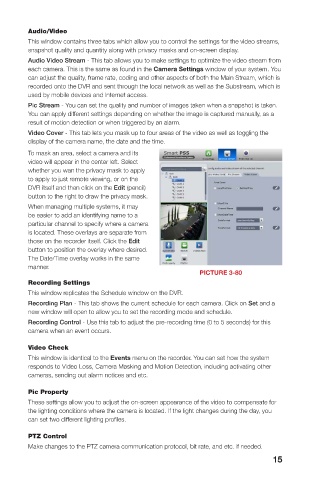
 Auto Time Sync - If needed, you can instruct Smart PSS to sync to the computer’s internal   Video Cover - This tab lets you mask up to four areas of the video as well as toggling the
 clock at a set time.  display of the camera name, the date and the time.
 The File tab is where you set where recordings and snapshots will be saved on your   To mask an area, select a camera and its
 computer’s hard drive.  video will appear in the center left. Select
        whether you wan the privacy mask to apply
 DEVICE SETUP  to apply to just remote viewing, or on the
 This window handles the functions found in the Alarm and Recording menus on your   DVR itself and then click on the Edit (pencil)
 system. Clicking on any of the five icons under the Device List on the left of the window will   button to the right to draw the privacy mask.
 open up the appropriate settings options.   When managing multiple systems, it may
        be easier to add an identifying name to a
        particular channel to specify where a camera
        is located. These overlays are separate from
        those on the recorder itself. Click the Edit
        button to position the overlay where desired.
        The Date/Time overlay works in the same
        manner.
                                                    PICTURE 3-80
        Recording Settings
        This window replicates the Schedule window on the DVR.
        Recording Plan - This tab shows the current schedule for each camera. Click on Set and a
        new window will open to allow you to set the recording mode and schedule.
        Recording Control - Use this tab to adjust the pre-recording time (0 to 5 seconds) for this
        camera when an event occurs.

        Video Check
        This window is identical to the Events menu on the recorder. You can set how the system
        responds to Video Loss, Camera Masking and Motion Detection, including activating other
        cameras, sending out alarm notices and etc.

        Pic Property
        These settings allow you to adjust the on-screen appearance of the video to compensate for
        the lighting conditions where the camera is located. If the light changes during the day, you
 PICTURE 3-79
        can set two different lighting profiles.
 When you have made a changes, click the OK button at the bottom right of the window to
 save your new settings. You can also apply these settings to another camera by clicking on   PTZ Control
 the Use To... button and selecting the other camera.  Make changes to the PTZ camera communication protocol, bit rate, and etc. if needed.
 14                                                                    15

