


Page 4 - QC-Smart_ PSS- Manual_webb ENG_Neat
P. 4
ADDING A SYSTEM TO PSS                                                         For systems that are not connected to the same network as the computer you are running
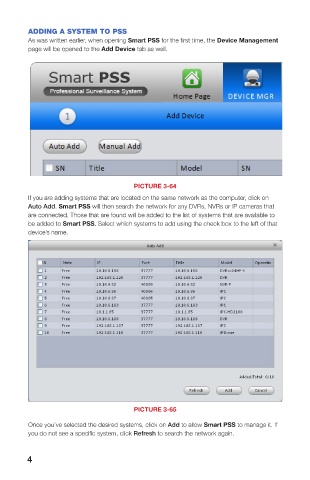
        As was written earlier, when opening Smart PSS for the first time, the Device Management   Smart PSS on, you must use the Manual Add button.
        page will be opened to the Add Device tab as well.
                                                                                       You’ll need to manually add the information
                                                                                       needed for the program to connect to the
                                                                                       item.
                                                                                       Title - Name the device to make it easy to
                                                                                             identify from the other systems you
                                                                                             may be controlling.
                                                                                       Group Name - Enter the name of an
                                                                                             established group. Or, if you’ve not
                                                                                             created one yet, enter the group
                                                                                             name and make sure that the Create
                                                                                             Group box at the bottom of the
                                                                                             window has been checked.
                                                                                       Type - Select whether the device is a DVR,
                                                                                             NVR or IP Camera (IPC).
                                                                                       IP/Domain Name - This should be the
                                   PICTURE 3-64                                              public (Internet) address that you
        If you are adding systems that are located on the same network as the computer, click on   obtained when setting up your DVR   PICTURE 3-66
        Auto Add. Smart PSS will then search the network for any DVRs, NVRs or IP cameras that   (see Confirming That Ports are
        are connected. Those that are found will be added to the list of systems that are available to   Opened in Section 1.2 of this manual). It may also be the Dynamic Domain Name
        be added to Smart PSS. Select which systems to add using the check box to the left of that   Service (DDNS) address you created in Section 1.6.
        device’s name.                                                                       Regardless of which you choose, you will not be able to connect to the DVR using
                                                                                             its local network address because your computer and system are not on the same
                                                                                             network.
                                                                                       Port - The default for your device will be 3777, but if you’ve changed it during setup, then you
                                                                                             will need to enter the correct number in this field.
                                                                                       User Name & Password - Enter the User Name and Password that you use to log into your
                                                                                             system.
                                                                                       Get Info - Click on this to have Smart PSS query the device. Device Model and Serial
                                                                                             Number are read-only, but they and the other fields will be auto-filled.


                                   PICTURE 3-65
        Once you’ve selected the desired systems, click on Add to allow Smart PSS to manage it. If
        you do not see a specific system, click Refresh to search the network again.


        4                                                                                                                                              5

