


Page 9 - QC-Smart_ PSS- Manual_webb ENG_Neat
P. 9
PREVIEW  Cameras can be dragged from the Device List on the right of the window into a channel
 Viewing live video from your connected devices takes place in the Preview window.  space where the camera’s video will appear. If a camera is dragged onto a space where
        another camera already is, the new video feed will replace the old one. You can close the
 1      camera view by clicking on the X in the information bar that appears at the top of the video
        image when you place the mouse cursor in that area.
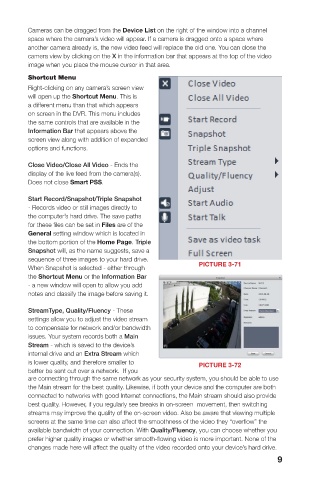
        Shortcut Menu
        Right-clicking on any camera’s screen view
        will open up the Shortcut Menu. This is
        a different menu than that which appears
        on screen in the DVR. This menu includes
 2  3  4  the same controls that are available in the
        Information Bar that appears above the
        screen view along with addition of expanded
        options and functions.
 5      Close Video/Close All Video - Ends the

        display of the live feed from the camera(s).
        Does not close Smart PSS.

        Start Record/Snapshot/Triple Snapshot
        - Records video or still images directly to
 8  9   the computer’s hard drive. The save paths
 6  7   for these files can be set in Files are of the
        General setting window which is located in
        the bottom portion of the Home Page. Triple
 PICTURE 3-70
        Snapshot will, as the name suggests, save a
 1  Icon Tab  Switch between windows by clicking on icons in this area.  sequence of three images to your hard drive.   PICTURE 3-71
        When Snapshot is selected - either through
 2  Viewing Area  Shows video feed from camera
        the Shortcut Menu or the Information Bar
 3  Active Screen  Green outline indicates which channel is active for control  - a new window will open to allow you add
 4  Device List/  Shows available groups and cameras  notes and classify the image before saving it.
 PTZ Tabs  PTZ Camera Controls
 5  Information Bar  Appears when mouse hovers over camera view. Contains   StreamType, Quality/Fluency - These
 information about bit stream, and includes shortcut controls:  settings allow you to adjust the video stream
      Turn audio on or off  to compensate for network and/or bandwidth
       Turn microphone on or off  issues. Your system records both a Main
     Begin/end local record (saves to computer’s hard drive)  Stream - which is saved to the device’s
     Take snapshot (saved to computer’s hard drive)  internal drive and an Extra Stream which
       Closes channel  is lower quality, and therefore smaller to   PICTURE 3-72
        better be sent out over a network.  If you
 6  Tasks  Allows quick access to saved tasks, such as tours, channel   are connecting through the same network as your security system, you should be able to use
 combinations, etc.  the Main stream for the best quality. Likewise, if both your device and the computer are both
 7  Multi-Screen   Slider adjusts between single-screen view and 36-screen view with   connected to networks with good Internet connections, the Main stream should also provide
 Mode  10 configurations possible.  best quality. However, if you regularly see breaks in on-screen  movement, then switching
 8  Screen Aspect   Change the aspect ratio (height vs. width) of the on-screen view.   streams may improve the quality of the on-screen video. Also be aware that viewing multiple
 Ratio/Full Screen  Click to bring window to full screen. Pressing ESC will return to   screens at the same time can also affect the smoothness of the video they “overflow” the
 normal window view.  available bandwidth of your connection. With Quality/Fluency, you can choose whether you
        prefer higher quality images or whether smooth-flowing video is more important. None of the
 9  Shortcut Menu  Gives access to additional controls and functions.  changes made here will affect the quality of the video recorded onto your device’s hard drive.
 8                                                                      9

