


Page 102 - Computing E-Book Grade 6
P. 102
The City School  2021-2022


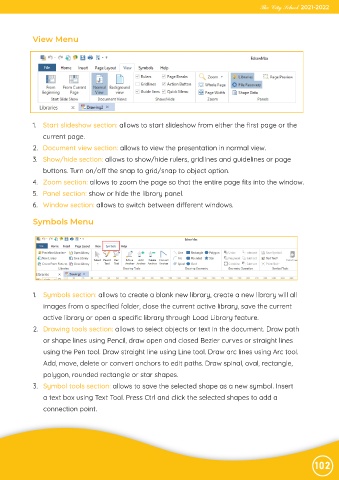
             View Menu


             1.  Start slideshow section: allows to start slideshow from either the first page or the

                current page.
             2.  Document view section: allows to view the presentation in normal view.

             3.  Show/hide section: allows to show/hide rulers, gridlines and guidelines or page
                buttons. Turn on/off the snap to grid/snap to object option.

             4.  Zoom section: allows to zoom the page so that the entire page fits into the window.
             5.  Panel section: show or hide the library panel.

             6.  Window section: allows to switch between different windows.

             Symbols Menu


             1.  Symbols section: allows to create a blank new library, create a new library will all
                images from a specified folder, close the current active library, save the current
                active library or open a specific library through Load Library feature.

             2.  Drawing tools section: allows to select objects or text in the document. Draw path

                or shape lines using Pencil, draw open and closed Bezier curves or straight lines
                using the Pen tool. Draw straight line using Line tool. Draw arc lines using Arc tool.
                Add, move, delete or convert anchors to edit paths. Draw spinal, oval, rectangle,

                polygon, rounded rectangle or star shapes.

             3.  Symbol tools section: allows to save the selected shape as a new symbol. Insert
                a text box using Text Tool. Press Ctrl and click the selected shapes to add a
                connection point.


                                                                                                                102

