


Page 161 - Computing E-Book Grade 6
P. 161
The City School  2021-2022


             Default settings of Edison’s three buttons:

             • Record button 1 press = download program, 3 presses = scan barcode
             • Stop button 1 press = stop program

             • Play button 1 press = run program


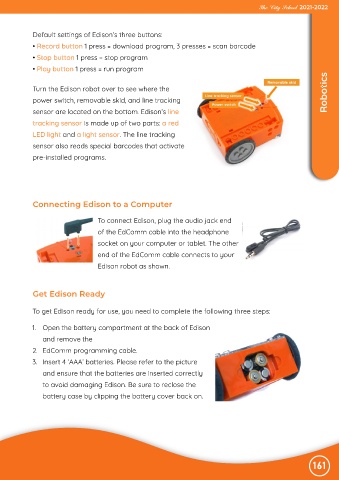
             Turn the Edison robot over to see where the                                                            Robotics

             power switch, removable skid, and line tracking
             sensor are located on the bottom. Edison’s line

             tracking sensor is made up of two parts: a red
             LED light and a light sensor. The line tracking

             sensor also reads special barcodes that activate
             pre-installed programs.


             Connecting Edison to a Computer

                                   To connect Edison, plug the audio jack end

                                   of the EdComm cable into the headphone
                                   socket on your computer or tablet. The other

                                   end of the EdComm cable connects to your
                                   Edison robot as shown.


             Get Edison Ready


            To get Edison ready for use, you need to complete the following three steps:


            1.  Open the battery compartment at the back of Edison
                and remove the

            2.  EdComm programming cable.
            3.  Insert 4 ‘AAA’ batteries. Please refer to the picture

                and ensure that the batteries are inserted correctly
                to avoid damaging Edison. Be sure to reclose the

                battery case by clipping the battery cover back on.


                                                                                                               161

