


Page 163 - Computing E-Book Grade 6
P. 163
The City School  2021-2022


             3.  Adjust your device’s volume to maximum or 100%. Plug the EdComm programming
                cable into the audio jack of your device.

             4.  Turn your Edison robot on. Connect the EdComm cable to the bottom of the robot,
                near the power switch. Press the round (record) button one time.

             5.  Ensure to disable all audio enhancements before programming the edison robot.
                The computer/device volume should also be set to maximum.                                           Robotics

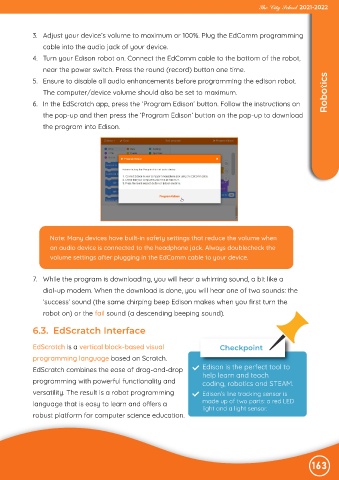
             6.  In the EdScratch app, press the ‘Program Edison’ button. Follow the instructions on
                the pop-up and then press the ‘Program Edison’ button on the pop-up to download

                the program into Edison.


                   Note: Many devices have built-in safety settings that reduce the volume when
                   an audio device is connected to the headphone jack. Always doublecheck the
                   volume settings after plugging in the EdComm cable to your device.


             7.  While the program is downloading, you will hear a whirring sound, a bit like a
                dial-up modem. When the download is done, you will hear one of two sounds: the

                ‘success’ sound (the same chirping beep Edison makes when you first turn the

                robot on) or the fail sound (a descending beeping sound).

             6.3.  EdScratch Interface


             EdScratch is a vertical block-based visual                       Checkpoint
             programming language based on Scratch.

             EdScratch combines the ease of drag-and-drop               Edison is the perfect tool to
                                                                        help learn and teach
             programming with powerful functionality and                coding, robotics and STEAM.

             versatility. The result is a robot programming             Edison’s line tracking sensor is
             language that is easy to learn and offers a                made up of two parts: a red LED
                                                                        light and a light sensor.
             robust platform for computer science education.


                                                                                                               163

