


Page 72 - Computing E-Book Grade 3
P. 72
The City School  2021-2022


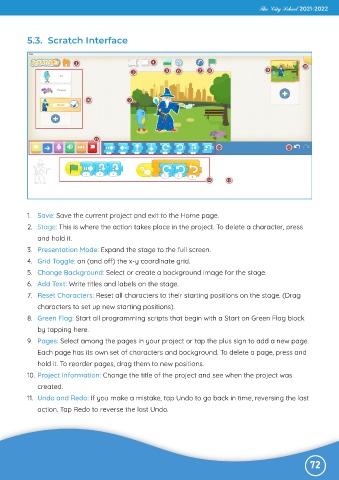
           5.3.  Scratch Interface


           1.  Save: Save the current project and exit to the Home page.
           2.  Stage: This is where the action takes place in the project. To delete a character, press

              and hold it.

           3.  Presentation Mode: Expand the stage to the full screen.
           4.  Grid Toggle: on (and off) the x-y coordinate grid.
           5.  Change Background: Select or create a background image for the stage.

           6.  Add Text: Write titles and labels on the stage.

           7.  Reset Characters: Reset all characters to their starting positions on the stage. (Drag
              characters to set up new starting positions).
           8.  Green Flag: Start all programming scripts that begin with a Start on Green Flag block

              by tapping here.

           9.  Pages: Select among the pages in your project or tap the plus sign to add a new page.
              Each page has its own set of characters and background. To delete a page, press and
              hold it. To reorder pages, drag them to new positions.

           10. Project Information: Change the title of the project and see when the project was

              created.
           11.  Undo and Redo: If you make a mistake, tap Undo to go back in time, reversing the last
              action. Tap Redo to reverse the last Undo.


                                                                                                              72

