


Page 73 - Computing E-Book Grade 3
P. 73
The City School  2021-2022


           12. Programming Script: Snap blocks together to make a programming script,

              telling the character what to do. Tap anywhere on a script to make it run. To
              delete a block or script, drag it outside the programming area. To copy a block

              or script from one character to another, drag it onto the character’s thumbnail.
           13.  Programming Area: This is where you connect programming blocks to create

              scripts.
           14.  Blocks Palette: This is the menu of programming blocks. Drag a block into the                      Let’s Program-Scratch

              programming area, then tap on it to see what it does.
           15.  Block Categories: This is where you can select a category of programming

              blocks: Triggering Blocks (Yellow), Motion (Blue), Looks (Purple), Sounds (Green),
              Control (Orange), End Blocks (Red).

           16.  Characters: Select among the characters in your project -- or tap the plus sign
              to add a new one. Once a character is selected, you can edit its scripts, tap its

              name to rename it, or tap the paintbrush to edit its image. To delete a character,
              press and hold it. To copy a character to another page, drag it to the page

              thumbnail.


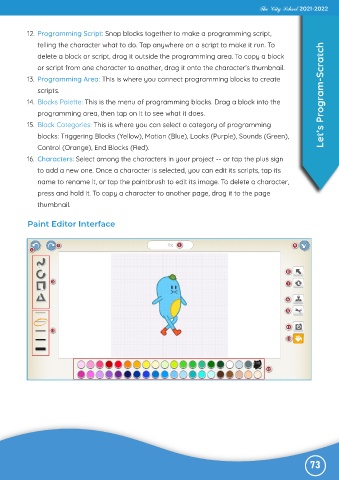
           Paint Editor Interface


                                                                                                              73

