


Page 74 - Computing E-Book Grade 3
P. 74
The City School  2021-2022


           1.  Undo: Reverse the most recent change.

           2.  Redo: Reverse the most recent undo.
           3.  Shape: Choose a shape to draw a line, circle, rectangle or triangle.

           4.  Character Name: Edit the name of the character.
           5.  Cut: After selecting the cut tool, you can tap a character or shape to remove it from the

           6.  canvas.
           7.  Duplicate: After selecting the duplicate tool, you can tap a character or shape to create

              a copy of it.
           8.  Rotate: After selecting the rotate tool, you can tap a character or shape around its

              centre.
           9.  Drag: After selecting the drag tool, you can drag a character or shape on the canvas.

           10. Save: Saving changes and leave the editor.
           11.  Fill: After selecting the fill tool, you can tap any section of a character or shape to fill it

              with the currently selected colour.
           12. Camera: After selecting the camera tool, you can tap any section of a character or

              shape, and then tap the take the picture.
           13.  Colour: Select a new colour to use for drawing and filling a shape.

           14.  Line Width: Change the width of the lines in the shapes you are drawing.


           5.3.  Programming Blocks


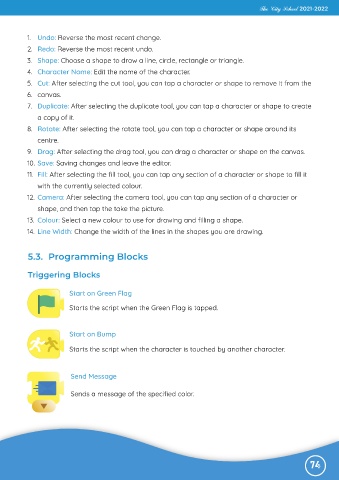
           Triggering Blocks


                         Start on Green Flag

                         Starts the script when the Green Flag is tapped.


                         Start on Bump

                         Starts the script when the character is touched by another character.


                                      ag
                                         e
                          Send Message
                          Send Mess
                          Sends a message of the specified color.


                                                                                                              74

