


Page 155 - Windows 10 May 2019 Update The Missing Manual: The Book That Should Have Been in the Box
P. 155
This area has been a sore spot with PC fans for years. Many a software

                installer inserted its own little icon into this area. So the tray eventually
                filled up with junky, confusing little icons that had no value to you—but
                made it harder to find the icons you did want to track.

                All that is history now. Out of the box, only a handful of Windows icons

                appear here. Each one offers three displays: one when you point without
                clicking, one when you click or tap the icon, and a third when you right-
                click the icon (or hold your finger down on it).


                Here’s what starts out on the system tray, left to right:


                           People (      ). Here’s one-stop clicking for communications apps

                           like Mail and Skype, as well as a place to pin your most frequently
                           contacted contacts. See “Editing an Address” for details. (If you
                           don’t see this icon, right-click a blank spot on the taskbar and

                           choose “Show People on the toolbar.”)

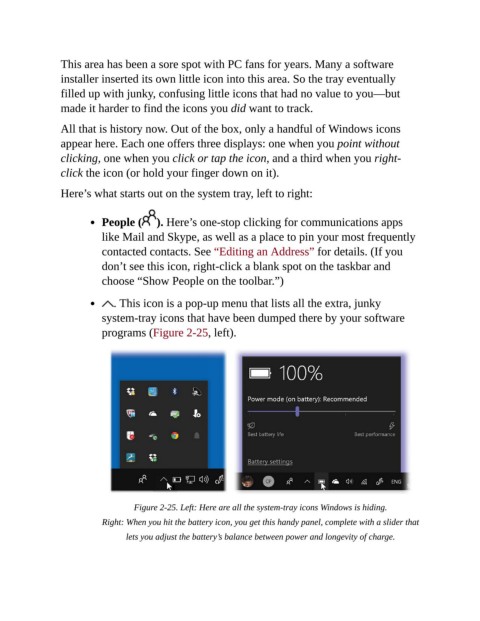
                              . This icon is a pop-up menu that lists all the extra, junky

                           system-tray icons that have been dumped there by your software
                           programs (Figure 2-25, left).


                                   Figure 2-25. Left: Here are all the system-tray icons Windows is hiding.

                           Right: When you hit the battery icon, you get this handy panel, complete with a slider that

                                 lets you adjust the battery’s balance between power and longevity of charge.

