


Page 257 - Windows 10 May 2019 Update The Missing Manual: The Book That Should Have Been in the Box
P. 257
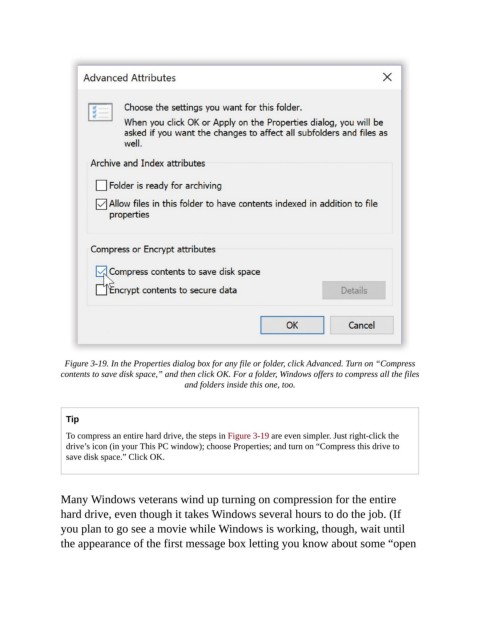
Figure 3-19. In the Properties dialog box for any file or folder, click Advanced. Turn on “Compress
                contents to save disk space,” and then click OK. For a folder, Windows offers to compress all the files
                                                and folders inside this one, too.


                  Tip

                  To compress an entire hard drive, the steps in Figure 3-19 are even simpler. Just right-click the
                  drive’s icon (in your This PC window); choose Properties; and turn on “Compress this drive to
                  save disk space.” Click OK.


                Many Windows veterans wind up turning on compression for the entire
                hard drive, even though it takes Windows several hours to do the job. (If
                you plan to go see a movie while Windows is working, though, wait until

                the appearance of the first message box letting you know about some “open

