


Page 360 - Windows 10 May 2019 Update The Missing Manual: The Book That Should Have Been in the Box
P. 360
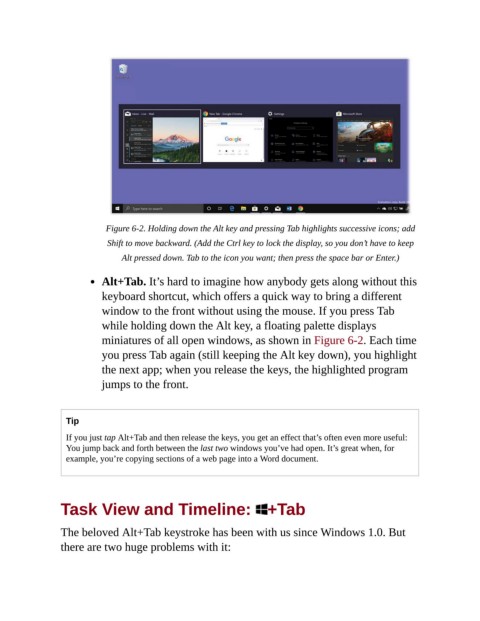
Figure 6-2. Holding down the Alt key and pressing Tab highlights successive icons; add
                            Shift to move backward. (Add the Ctrl key to lock the display, so you don’t have to keep
                                Alt pressed down. Tab to the icon you want; then press the space bar or Enter.)


                           Alt+Tab. It’s hard to imagine how anybody gets along without this
                           keyboard shortcut, which offers a quick way to bring a different
                           window to the front without using the mouse. If you press Tab

                           while holding down the Alt key, a floating palette displays
                           miniatures of all open windows, as shown in Figure 6-2. Each time

                           you press Tab again (still keeping the Alt key down), you highlight
                           the next app; when you release the keys, the highlighted program
                           jumps to the front.


                  Tip

                  If you just tap Alt+Tab and then release the keys, you get an effect that’s often even more useful:
                  You jump back and forth between the last two windows you’ve had open. It’s great when, for
                  example, you’re copying sections of a web page into a Word document.


                Task View and Timeline:  +Tab


                The beloved Alt+Tab keystroke has been with us since Windows 1.0. But
                there are two huge problems with it:

