


Page 487 - Windows 10 May 2019 Update The Missing Manual: The Book That Should Have Been in the Box
P. 487
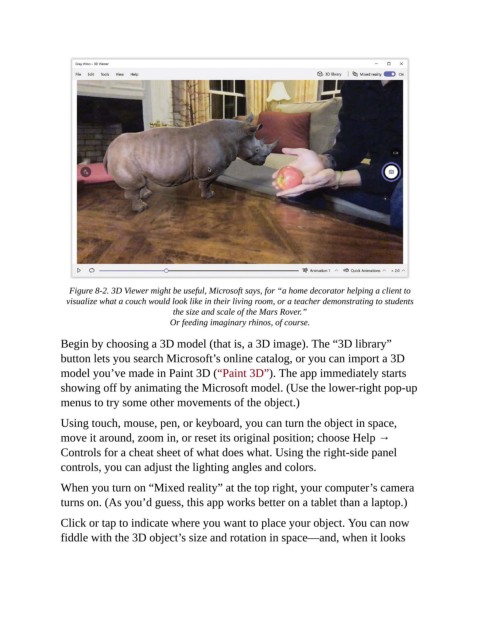
Figure 8-2. 3D Viewer might be useful, Microsoft says, for “a home decorator helping a client to
                  visualize what a couch would look like in their living room, or a teacher demonstrating to students
                                             the size and scale of the Mars Rover.”
                                            Or feeding imaginary rhinos, of course.

                Begin by choosing a 3D model (that is, a 3D image). The “3D library”
                button lets you search Microsoft’s online catalog, or you can import a 3D
                model you’ve made in Paint 3D (“Paint 3D”). The app immediately starts

                showing off by animating the Microsoft model. (Use the lower-right pop-up
                menus to try some other movements of the object.)

                Using touch, mouse, pen, or keyboard, you can turn the object in space,

                move it around, zoom in, or reset its original position; choose Help →
                Controls for a cheat sheet of what does what. Using the right-side panel
                controls, you can adjust the lighting angles and colors.


                When you turn on “Mixed reality” at the top right, your computer’s camera
                turns on. (As you’d guess, this app works better on a tablet than a laptop.)

                Click or tap to indicate where you want to place your object. You can now

                fiddle with the 3D object’s size and rotation in space—and, when it looks

