


Page 491 - Windows 10 May 2019 Update The Missing Manual: The Book That Should Have Been in the Box
P. 491
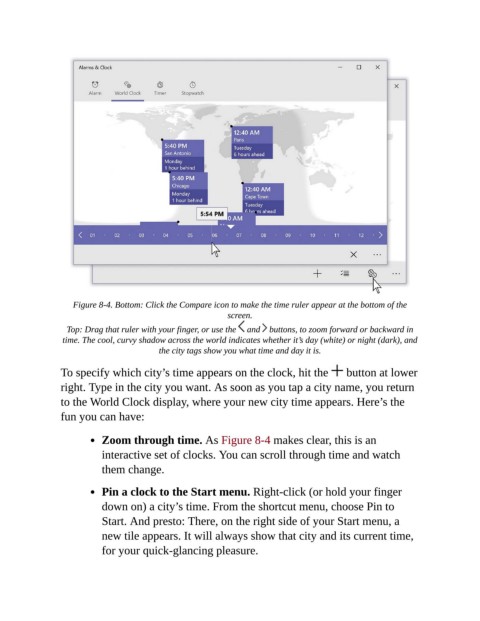
Figure 8-4. Bottom: Click the Compare icon to make the time ruler appear at the bottom of the
                                                           screen.

                  Top: Drag that ruler with your finger, or use the   and   buttons, to zoom forward or backward in
                 time. The cool, curvy shadow across the world indicates whether it’s day (white) or night (dark), and
                                         the city tags show you what time and day it is.

                To specify which city’s time appears on the clock, hit the                button at lower

                right. Type in the city you want. As soon as you tap a city name, you return
                to the World Clock display, where your new city time appears. Here’s the
                fun you can have:


                           Zoom through time. As Figure 8-4 makes clear, this is an

                           interactive set of clocks. You can scroll through time and watch
                           them change.

                           Pin a clock to the Start menu. Right-click (or hold your finger

                           down on) a city’s time. From the shortcut menu, choose Pin to
                           Start. And presto: There, on the right side of your Start menu, a
                           new tile appears. It will always show that city and its current time,

                           for your quick-glancing pleasure.

