


Page 49 - Windows 10 May 2019 Update The Missing Manual: The Book That Should Have Been in the Box
P. 49
preferences—in one handy, central location: your personal folder.

                           This folder bears your name, or whatever account name you typed
                           when you installed Windows.

                           Technically, your personal folder lurks inside the C: > Users folder.
                           But that’s a lot of burrowing when you just want a view of your

                           empire. That’s why you can install your personal folder here, right
                           on the Start menu.


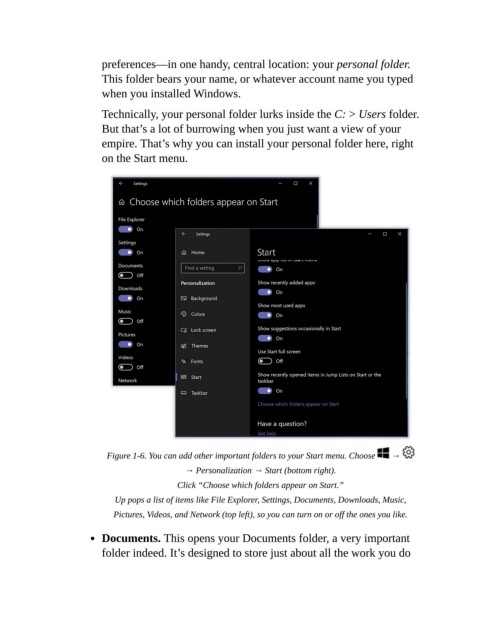
                            Figure 1-6. You can add other important folders to your Start menu. Choose    →
                                                → Personalization → Start (bottom right).

                                              Click “Choose which folders appear on Start.”

                              Up pops a list of items like File Explorer, Settings, Documents, Downloads, Music,
                              Pictures, Videos, and Network (top left), so you can turn on or off the ones you like.


                           Documents. This opens your Documents folder, a very important
                           folder indeed. It’s designed to store just about all the work you do

