


Page 870 - Windows 10 May 2019 Update The Missing Manual: The Book That Should Have Been in the Box
P. 870
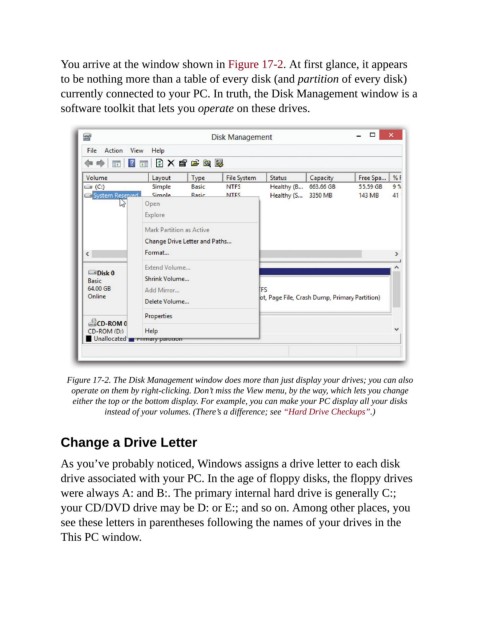
You arrive at the window shown in Figure 17-2. At first glance, it appears

                to be nothing more than a table of every disk (and partition of every disk)
                currently connected to your PC. In truth, the Disk Management window is a
                software toolkit that lets you operate on these drives.


                  Figure 17-2. The Disk Management window does more than just display your drives; you can also
                   operate on them by right-clicking. Don’t miss the View menu, by the way, which lets you change
                   either the top or the bottom display. For example, you can make your PC display all your disks
                            instead of your volumes. (There’s a difference; see “Hard Drive Checkups”.)


                Change a Drive Letter


                As you’ve probably noticed, Windows assigns a drive letter to each disk
                drive associated with your PC. In the age of floppy disks, the floppy drives

                were always A: and B:. The primary internal hard drive is generally C:;
                your CD/DVD drive may be D: or E:; and so on. Among other places, you
                see these letters in parentheses following the names of your drives in the

                This PC window.

