


Page 50 - Computing book 6
P. 50
e-Safety and Going Online                                                            Class 6


               By default, your document is saved in the root location of your OneDrive storage space. If you plan
               to work with a lot of different documents, you may want to create specific folders in OneDrive to
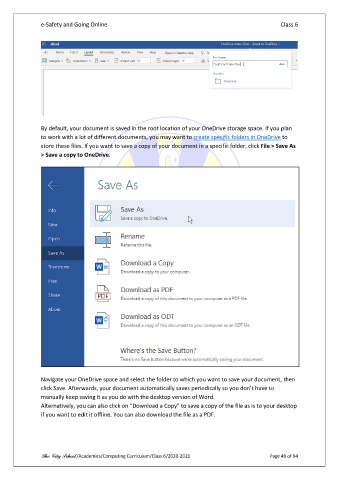
               store these files. If you want to save a copy of your document in a specific folder, click File > Save As
               > Save a copy to OneDrive.


               Navigate your OneDrive space and select the folder to which you want to save your document, then
               click Save. Afterwards, your document automatically saves periodically so you don’t have to
               manually keep saving it as you do with the desktop version of Word.
               Alternatively, you can also click on “Download a Copy” to save a copy of the file as is to your desktop
               if you want to edit it offline. You can also download the file as a PDF.


               The City School /Academics/Computing Curriculum/Class 6/2020-2021                Page 49 of 94

