


Page 48 - Computing book 6
P. 48
e-Safety and Going Online                                                            Class 6


               Office 365

               Office 365 is a fully-featured web-based version of Microsoft Office. It comes with the new Microsoft
               365 subscription which includes Windows 10, MS Teams and Office 365.

               How to use Office 365:
               Open your web browser and navigate to portal.office.com.
               Here you should be able to login to your Microsoft account by using your provided CSN email
               address and password.
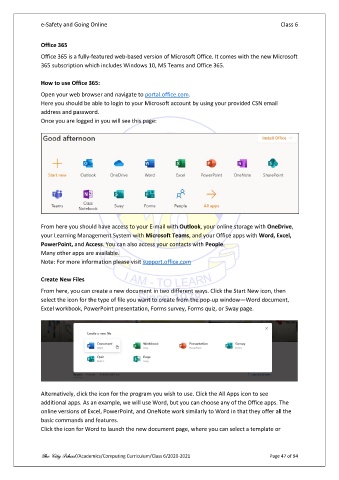
               Once you are logged in you will see this page:


               From here you should have access to your E-mail with Outlook, your online storage with OneDrive,
               your Learning Management System with Microsoft Teams, and your Office apps with Word, Excel,
               PowerPoint, and Access. You can also access your contacts with People.
               Many other apps are available.
               Note: For more information please visit support.office.com

               Create New Files
               From here, you can create a new document in two different ways. Click the Start New icon, then
               select the icon for the type of file you want to create from the pop-up window—Word document,
               Excel workbook, PowerPoint presentation, Forms survey, Forms quiz, or Sway page.


               Alternatively, click the icon for the program you wish to use. Click the All Apps icon to see
               additional apps. As an example, we will use Word, but you can choose any of the Office apps. The
               online versions of Excel, PowerPoint, and OneNote work similarly to Word in that they offer all the
               basic commands and features.
               Click the icon for Word to launch the new document page, where you can select a template or


               The City School /Academics/Computing Curriculum/Class 6/2020-2021                Page 47 of 94

