


Page 47 - Buletin JSKM 2021
P. 47
46


                             GMAIL TIP AND TRICK: SCHEDULE AN EMAIL IN GMAIL
                                                      Rafizah Kechil
                       It's simple to schedule an email in Gmail, as well as how to make adjustments. We don't
                have  to  send  emails  on  a  regular  basis.  There  are,  however,  times  when  it  is  absolutely
                necessary. It can be complicated if you don't know how to accomplish it at the moment. As a
                result, being able to do so is always useful.

                Schedule an email:
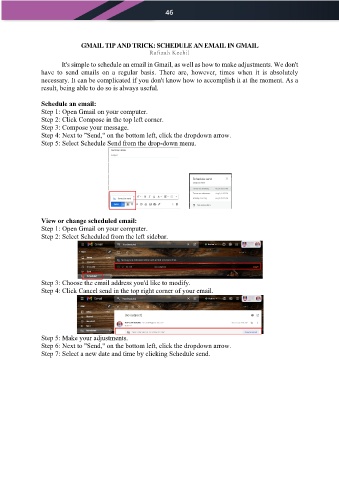
                Step 1: Open Gmail on your computer.
                Step 2: Click Compose in the top left corner.
                Step 3: Compose your message.
                Step 4: Next to "Send," on the bottom left, click the dropdown arrow.
                Step 5: Select Schedule Send from the drop-down menu.


                View or change scheduled email:
                Step 1: Open Gmail on your computer.
                Step 2: Select Scheduled from the left sidebar.


                Step 3: Choose the email address you'd like to modify.
                Step 4: Click Cancel send in the top right corner of your email.


                Step 5: Make your adjustments.
                Step 6: Next to "Send," on the bottom left, click the dropdown arrow.
                Step 7: Select a new date and time by clicking Schedule send.

