


Page 26 - TCS ICT Book 8
P. 26
The City School  2021-2022


             2.4.  Understanding Layers in Photoshop


             Layers let you organize your work into distinct levels               Checkpoint
             that can be edited and viewed as individual units.

             Every Photoshop CC document contains at least one               Adobe Photoshop is
                                                                             raster-based photo editing
             layer. Creating multiple layers lets you easily control         tool
                                                                            A bitmap is a rectangular grid
             how your artwork is printed, displayed, and edited.            of pixels
             You will use the Layers palette often while creating a

             document, so it is crucial to understand what it does
             and how to use it.


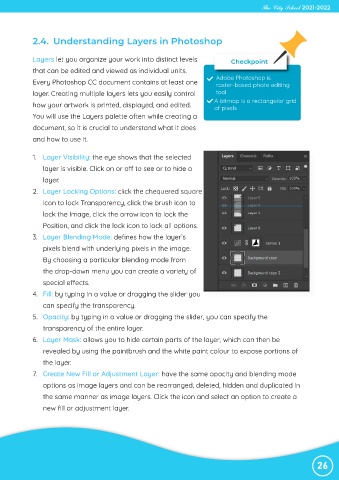
             1.  Layer Visibility: the eye shows that the selected

                layer is visible. Click on or off to see or to hide a
                layer.

             2.  Layer Locking Options: click the chequered square
                icon to lock Transparency, click the brush icon to

                lock the Image, click the arrow icon to lock the
                Position, and click the lock icon to lock all options.

             3.  Layer Blending Mode: defines how the layer’s
                pixels blend with underlying pixels in the image.

                By choosing a particular blending mode from
                the drop-down menu you can create a variety of

                special effects.
             4.  Fill: by typing in a value or dragging the slider you

                can specify the transparency.
             5.  Opacity: by typing in a value or dragging the slider, you can specify the

                transparency of the entire layer.
             6.  Layer Mask: allows you to hide certain parts of the layer, which can then be

                revealed by using the paintbrush and the white paint colour to expose portions of
                the layer.

             7.  Create New Fill or Adjustment Layer: have the same opacity and blending mode
                options as image layers and can be rearranged, deleted, hidden and duplicated in

                the same manner as image layers. Click the icon and select an option to create a
                new fill or adjustment layer.


                                                                                                                26

