


Page 29 - TCS ICT Book 8
P. 29
The City School  2021-2022


             Color Mode


             Choose a colour mode that will best fit your project. For example, when making a

             graphic for a web site, choose RGB. When making an image for print choose CMYK.

             Color Adjustment


             Colour adjustment options in Photoshop CC 2018 can help you to make your digital                       Advance Imaging
             photos look more natural. To colour correct your images, follow these steps:


             1.  Open the image you wish to correct.
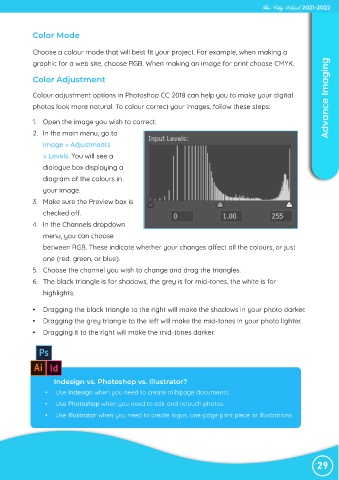
             2.  In the main menu, go to
                Image > Adjustments

                > Levels. You will see a

                dialogue box displaying a
                diagram of the colours in
                your image.

             3.  Make sure the Preview box is

                checked off.
             4.  In the Channels dropdown
                menu, you can choose

                between RGB. These indicate whether your changes affect all the colours, or just

                one (red, green, or blue).
             5.  Choose the channel you wish to change and drag the triangles.
             6.  The black triangle is for shadows, the grey is for mid-tones, the white is for

                highlights.


             •  Dragging the black triangle to the right will make the shadows in your photo darker.
             •  Dragging the grey triangle to the left will make the mid-tones in your photo lighter.

             •  Dragging it to the right will make the mid-tones darker.


                    Indesign vs. Photoshop vs. Illustrator?
                 •   Use Indesign when you need to create miltipage documents.
                 •   Use Photoshop when you need to edit and retouch photos.

                 •   Use Illustrator when you need to create logos, one-page print piece or illustrations


                                                                                                                29

