


Page 31 - TCS ICT Book 8
P. 31
The City School  2021-2022


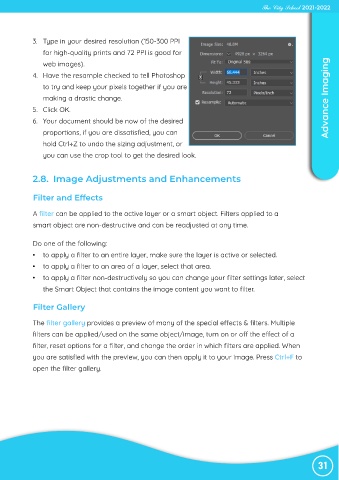
             3.  Type in your desired resolution (150-300 PPI
                for high-quality prints and 72 PPI is good for

                web images).
             4.  Have the resample checked to tell Photoshop

                to try and keep your pixels together if you are
                making a drastic change.                                                                            Advance Imaging

             5.  Click OK.
             6.  Your document should be now of the desired

                proportions, if you are dissatisfied, you can
                hold Ctrl+Z to undo the sizing adjustment, or

                you can use the crop tool to get the desired look.


             2.8.  Image Adjustments and Enhancements


             Filter and Effects


             A filter can be applied to the active layer or a smart object. Filters applied to a
             smart object are non-destructive and can be readjusted at any time.


             Do one of the following:

             •  to apply a filter to an entire layer, make sure the layer is active or selected.
             •  to apply a filter to an area of a layer, select that area.

             •  to apply a filter non-destructively so you can change your filter settings later, select
                the Smart Object that contains the image content you want to filter.


             Filter Gallery


             The filter gallery provides a preview of many of the special effects & filters. Multiple
             filters can be applied/used on the same object/image, turn on or off the effect of a

             filter, reset options for a filter, and change the order in which filters are applied. When
             you are satisfied with the preview, you can then apply it to your image. Press Ctrl+F to

             open the filter gallery.


                                                                                                                 31

