


Page 30 - TCS ICT Book 8
P. 30
The City School  2021-2022


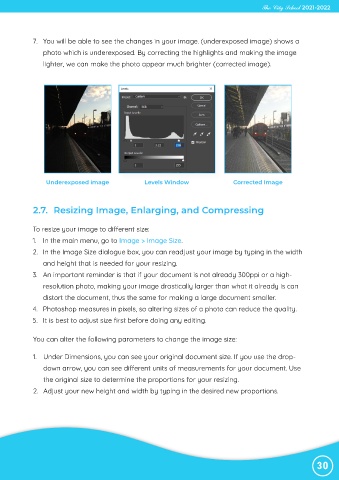
             7.  You will be able to see the changes in your image. (underexposed image) shows a
                photo which is underexposed. By correcting the highlights and making the image

                lighter, we can make the photo appear much brighter (corrected image).


                 Underexposed image                 Levels Window                  Corrected Image


             2.7.  Resizing Image, Enlarging, and Compressing


             To resize your image to different size:

             1.  In the main menu, go to Image > Image Size.
             2.  In the Image Size dialogue box, you can readjust your image by typing in the width
                and height that is needed for your resizing.

             3.  An important reminder is that if your document is not already 300ppi or a high-

                resolution photo, making your image drastically larger than what it already is can
                distort the document, thus the same for making a large document smaller.
             4.  Photoshop measures in pixels, so altering sizes of a photo can reduce the quality.

             5.  It is best to adjust size first before doing any editing.


             You can alter the following parameters to change the image size:


             1.  Under Dimensions, you can see your original document size. If you use the drop-

                down arrow, you can see different units of measurements for your document. Use
                the original size to determine the proportions for your resizing.
             2.  Adjust your new height and width by typing in the desired new proportions.


                                                                                                                30

