


Page 60 - TCS ICT Book 8
P. 60
The City School  2021-2022


             Creating Queries in MS Access


             Example 1: For this task, let’s continue working with the Employee table we have used

             before. Let us suppose that we need the data of our employees with their first name,
             last name and their salaries which are higher than 3500$.


                  Pinpoint                  Employees who earn more than $3500

                  Identify                  FirstName, LastName, StartSalary


                  Locate                    tblEmployee (EmployeeID, FirstName, LastName)

                                            tblHRData (StartSalary)
                  Determine                 StartSalary>$3500


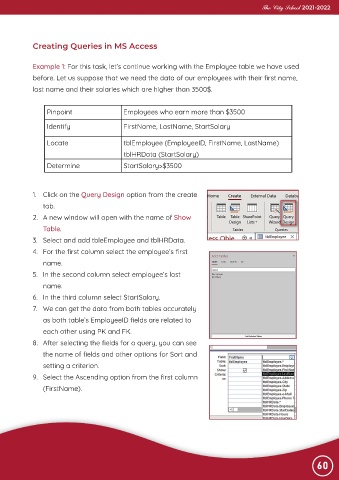
             1.  Click on the Query Design option from the create
                tab.
             2.  A new window will open with the name of Show

                Table.

             3.  Select and add tbleEmployee and tblHRData.
             4.  For the first column select the employee’s first
                name.

             5.  In the second column select employee’s last

                name.
             6.  In the third column select StartSalary.
             7.  We can get the data from both tables accurately

                as both table’s EmployeeID fields are related to

                each other using PK and FK.
             8.  After selecting the fields for a query, you can see
                the name of fields and other options for Sort and

                setting a criterion.

             9.  Select the Ascending option from the first column
                (FirstName).


                                                                                                                60

