


Page 62 - TCS ICT Book 5
P. 62
The City School  2021-2022


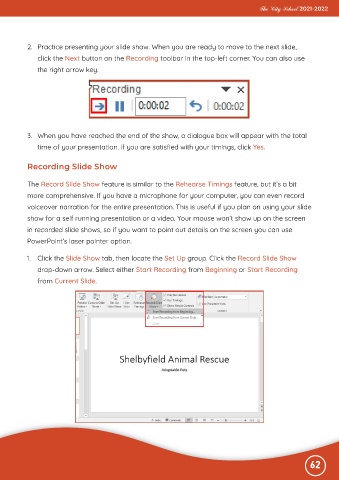
           2.  Practice presenting your slide show. When you are ready to move to the next slide,

              click the Next button on the Recording toolbar in the top-left corner. You can also use
              the right arrow key.


           3.  When you have reached the end of the show, a dialogue box will appear with the total

              time of your presentation. If you are satisfied with your timings, click Yes.


           Recording Slide Show


           The Record Slide Show feature is similar to the Rehearse Timings feature, but it’s a bit

           more comprehensive. If you have a microphone for your computer, you can even record
           voiceover narration for the entire presentation. This is useful if you plan on using your slide

           show for a self running presentation or a video. Your mouse won’t show up on the screen
           in recorded slide shows, so if you want to point out details on the screen you can use

           PowerPoint’s laser pointer option.

           1.  Click the Slide Show tab, then locate the Set Up group. Click the Record Slide Show

              drop-down arrow. Select either Start Recording from Beginning or Start Recording
              from Current Slide.


                                                                                                              62

