


Page 11 - TCS ICT Book 4
P. 11
The City School  2021-2022


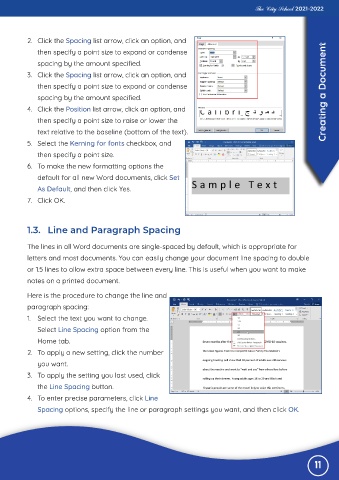
           2.  Click the Spacing list arrow, click an option, and
              then specify a point size to expand or condense

              spacing by the amount specified.
           3.  Click the Spacing list arrow, click an option, and

              then specify a point size to expand or condense
              spacing by the amount specified.                                                                     Creating a Document

           4.  Click the Position list arrow, click an option, and
              then specify a point size to raise or lower the

              text relative to the baseline (bottom of the text).
           5.  Select the Kerning for fonts checkbox, and

              then specify a point size.
           6.  To make the new formatting options the

              default for all new Word documents, click Set
              As Default, and then click Yes.

           7.  Click OK.


           1.3.  Line and Paragraph Spacing


           The lines in all Word documents are single-spaced by default, which is appropriate for
           letters and most documents. You can easily change your document line spacing to double

           or 1.5 lines to allow extra space between every line. This is useful when you want to make
           notes on a printed document.


           Here is the procedure to change the line and
           paragraph spacing:

           1.  Select the text you want to change.
              Select Line Spacing option from the

              Home tab.
           2.  To apply a new setting, click the number

              you want.
           3.  To apply the setting you last used, click

              the Line Spacing button.
           4.  To enter precise parameters, click Line

              Spacing options, specify the line or paragraph settings you want, and then click OK.


                                                                                                                11

