


Page 228 - Learn To Program With Scratch
P. 228
Fraction Tutor

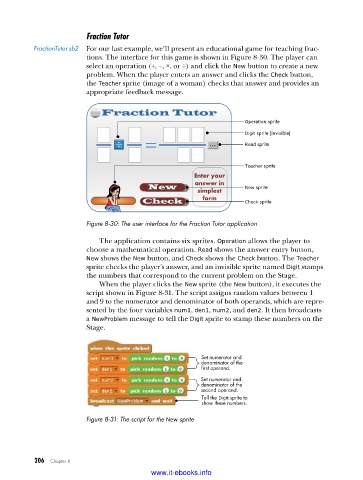
          FractionTutor .sb2  For our last example, we’ll present an educational game for teaching frac-
                         tions. The interface for this game is shown in Figure 8-30. The player can
                         select an operation (+, −, ×, or ÷) and click the New button to create a new
                         problem. When the player enters an answer and clicks the Check button,
                         the Teacher sprite (image of a woman) checks that answer and provides an
                         appropriate feedback message.


                                                                     Operation sprite
                                                                     Digit sprite (invisible)
                                                                     Read sprite


                                                                     Teacher sprite


                                                                     New sprite
                                                                     Check sprite


                         Figure 8-30: The user interface for the Fraction Tutor application

                             The application contains six sprites. Operation allows the player to
                         choose a mathematical operation. Read shows the answer entry button,
                         New shows the New button, and Check shows the Check button. The Teacher
                         sprite checks the player’s answer, and an invisible sprite named Digit stamps
                         the numbers that correspond to the current problem on the Stage.
                             When the player clicks the New sprite (the New button), it executes the
                         script shown in Figure 8-31. The script assigns random values between 1
                         and 9 to the numerator and denominator of both operands, which are repre-
                         sented by the four variables num1, den1, num2, and den2. It then broadcasts
                         a NewProblem message to tell the Digit sprite to stamp these numbers on the
                         Stage.


                                                         Set numerator and
                                                         denominator of the
                                                         first operand.
                                                         Set numerator and
                                                         denominator of the
                                                         second operand.
                                                         Tell the Digit sprite to
                                                         show these numbers.

                         Figure 8-31: The script for the New sprite


           206   Chapter 8
                                           www.it-ebooks.info

