


Page 256 - Learn To Program With Scratch
P. 256
Quadrilateral Classification Game
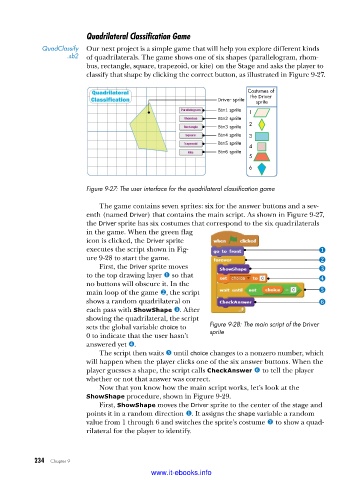
QuadClassify Our next project is a simple game that will help you explore different kinds
.sb2 of quadrilaterals. The game shows one of six shapes (parallelogram, rhom-
bus, rectangle, square, trapezoid, or kite) on the Stage and asks the player to
classify that shape by clicking the correct button, as illustrated in Figure 9-27.
Costumes of
Driver sprite the Driver
sprite
Btn1 sprite 1
Btn2 sprite
Btn3 sprite 2
Btn4 sprite 3
Btn5 sprite 4
Btn6 sprite
5
6
Figure 9-27: The user interface for the quadrilateral classification game
The game contains seven sprites: six for the answer buttons and a sev-
enth (named Driver) that contains the main script. As shown in Figure 9-27,
the Driver sprite has six costumes that correspond to the six quadrilaterals
in the game. When the green flag
icon is clicked, the Driver sprite
executes the script shown in Fig-
ure 9-28 to start the game.
First, the Driver sprite moves
to the top drawing layer u so that
no buttons will obscure it. In the
main loop of the game v, the script
shows a random quadrilateral on
each pass with ShowShape w. After
showing the quadrilateral, the script
sets the global variable choice to Figure 9-28: The main script of the Driver
0 to indicate that the user hasn’t sprite
answered yet x.
The script then waits y until choice changes to a nonzero number, which
will happen when the player clicks one of the six answer buttons. When the
player guesses a shape, the script calls CheckAnswer z to tell the player
whether or not that answer was correct.
Now that you know how the main script works, let’s look at the
ShowShape procedure, shown in Figure 9-29.
First, ShowShape moves the Driver sprite to the center of the stage and
points it in a random direction u. It assigns the shape variable a random
value from 1 through 6 and switches the sprite’s costume v to show a quad-
rilateral for the player to identify.
234 Chapter 9
www.it-ebooks.info

