


Page 174 - Scratch Programming Playground
P. 174
A Make the Start Screen
Backdrop
Fruit Slicer will have a start screen. When the player clicks the
green flag, the start screen shows the game’s title. When the
player loses, the game will return to the start screen. the
start screen is a good place to put your name or logo when you
show off your games to others. In fact, try to come up with a
game studio name for you and your programs now!
Start a new project in the Scratch editor, and enter Fruit
Slicer as the project name.
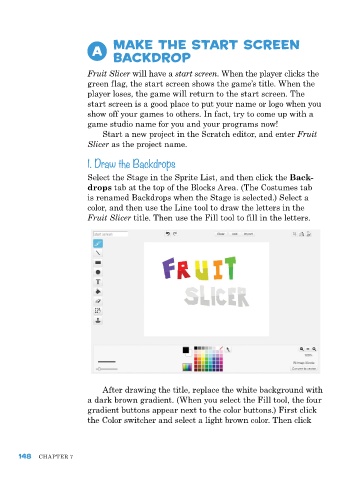
1. Draw the Backdrops
Select the Stage in the Sprite list, and then click the Back
drops tab at the top of the Blocks area. (the Costumes tab
is renamed Backdrops when the Stage is selected.) Select a
color, and then use the line tool to draw the letters in the
Fruit Slicer title. then use the Fill tool to fill in the letters.
after drawing the title, replace the white background with
a dark brown gradient. (When you select the Fill tool, the four
gradient buttons appear next to the color buttons.) First click
the Color switcher and select a light brown color. then click
148 Chapter 7

