


Page 176 - Scratch Programming Playground
P. 176
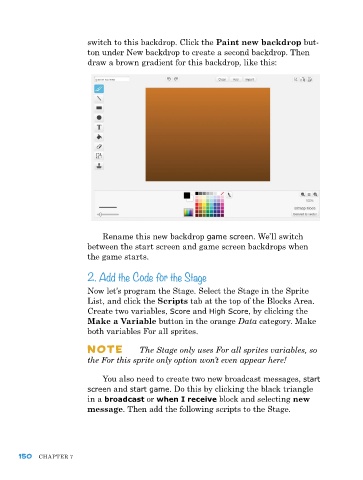
switch to this backdrop. Click the Paint new backdrop but-
                         ton under New backdrop to create a second backdrop. then
                         draw a brown gradient for this backdrop, like this:


                             rename this new backdrop game screen. We’ll switch
                         between the start screen and game screen backdrops when
                         the game starts.

                         2. Add the Code for the Stage

                         Now let’s program the Stage. Select the Stage in the Sprite
                         list, and click the Scripts tab at the top of the Blocks area.
                         Create two variables, Score and High Score, by clicking the
                         Make a Variable button in the orange Data category. Make
                         both variables For all sprites.

                         NOte           The Stage only uses For all sprites variables, so
                         the For this sprite only option won’t even appear here!


                              You also need to create two new broadcast messages, start
                         screen and start game. Do this by clicking the black triangle
                         in a broadcast or when I receive block and selecting new
                         message. then add the following scripts to the Stage.


      150   Chapter 7

