


Page 10 - Receptionist
P. 10
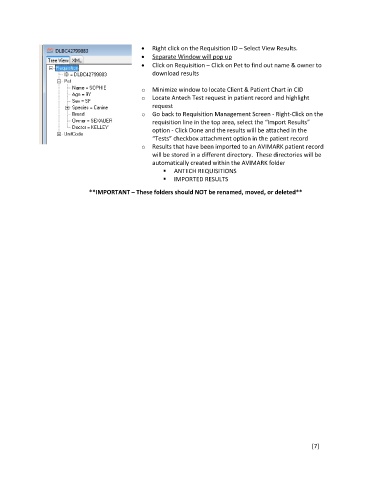
Right click on the Requisition ID – Select View Results.
Separate Window will pop up
Click on Requisition – Click on Pet to find out name & owner to
download results
o Minimize window to locate Client & Patient Chart in CID
o Locate Antech Test request in patient record and highlight
request
o Go back to Requisition Management Screen - Right-Click on the
requisition line in the top area, select the “Import Results”
option - Click Done and the results will be attached in the
“Tests” checkbox attachment option in the patient record
o Results that have been imported to an AVIMARK patient record
will be stored in a different directory. These directories will be
automatically created within the AVIMARK folder
ANTECH REQUISITIONS
IMPORTED RESULTS
**IMPORTANT – These folders should NOT be renamed, moved, or deleted**
[7]

