


Page 57 - Computing E-Book Grade 6
P. 57
The City School  2021-2022


             3.  To replace your selected word with your desired word from the suggested list, press

                the down arrow key in front of the desired word and click Insert.
                                                                                                                    Document Creation


             2.9.  Find and Replace


            When you’re working with longer documents, it can be difficult and time consuming to
            locate a specific word or phrase. Word can automatically search your document using

            the Find feature, and it allows you to quickly change words or phrases using Replace.


            To Find Text

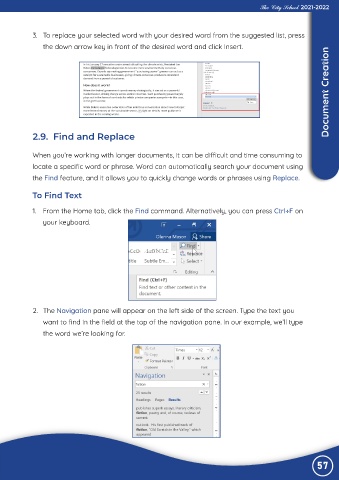
            1.  From the Home tab, click the Find command. Alternatively, you can press Ctrl+F on

                your keyboard.


             2.  The Navigation pane will appear on the left side of the screen. Type the text you
                want to find in the field at the top of the navigation pane. In our example, we’ll type

                the word we’re looking for.


                                                                                                                57

