


Page 52 - Computing E-Book Grade 6
P. 52
The City School  2021-2022


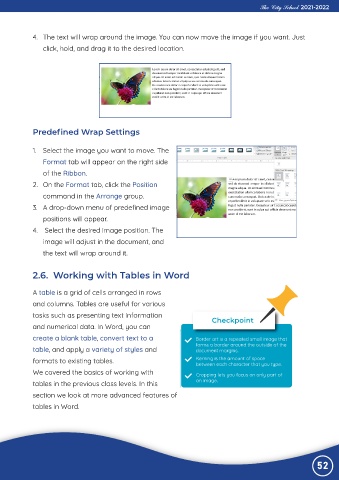
             4.  The text will wrap around the image. You can now move the image if you want. Just

                click, hold, and drag it to the desired location.


             Predefined Wrap Settings


             1.  Select the image you want to move. The
                Format tab will appear on the right side

                of the Ribbon.
             2.  On the Format tab, click the Position

                command in the Arrange group.
             3.  A drop-down menu of predefined image

                positions will appear.
             4.   Select the desired image position. The

                image will adjust in the document, and
                the text will wrap around it.


             2.6.  Working with Tables in Word


             A table is a grid of cells arranged in rows
             and columns. Tables are useful for various

             tasks such as presenting text information                     Checkpoint
             and numerical data. In Word, you can

             create a blank table, convert text to a                  Border art is a repeated small image that
             table, and apply a variety of styles and                 forms a border around the outside of the
                                                                      document margins.
             formats to existing tables.                              Kerning is the amount of space
                                                                      between each character that you type.
             We covered the basics of working with                    Cropping lets you focus on only part of

             tables in the previous class levels. In this             an image.
             section we look at more advanced features of

             tables in Word.


                                                                                                                52

