


Page 83 - 18-868 SEO PowerSuite Workflow_VPMGC
P. 83
SEO Workflow


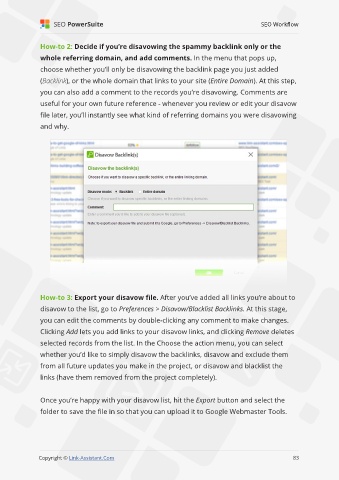
               How-to 2: Decide if you’re disavowing the spammy backlink only or the

               whole referring domain, and add comments. In the menu that pops up,
               choose whether you’ll only be disavowing the backlink page you just added

               (Backlink), or the whole domain that links to your site (Entire Domain). At this step,
               you can also add a comment to the records you’re disavowing. Comments are

               useful for your own future reference - whenever you review or edit your disavow
               file later, you’ll instantly see what kind of referring domains you were disavowing

               and why.


               How-to 3: Export your disavow file. After you’ve added all links you’re about to

               disavow to the list, go to Preferences > Disavow/Blacklist Backlinks. At this stage,
               you can edit the comments by double-clicking any comment to make changes.

               Clicking Add lets you add links to your disavow links, and clicking Remove deletes
               selected records from the list. In the Choose the action menu, you can select

               whether you’d like to simply disavow the backlinks, disavow and exclude them
               from all future updates you make in the project, or disavow and blacklist the

               links (have them removed from the project completely).


               Once you’re happy with your disavow list, hit the Export button and select the
               folder to save the file in so that you can upload it to Google Webmaster Tools.


                                                                                                             83

               Copyright © Link-Assistant.Com                                                           83

