


Page 55 - MercNET User's Guide
P. 55
2.  Select the Account Summary glasses
        Note: The Bill To, Ship To address type will display Mercury transactions
               3.  Select Account Tab
               4.  Select Print Statement
               5.  Select current Statement Period
               6.  Select Submit
               7.  Select Pay Statement
               8.  Select Pay
               9.  Verify the Payment Information and the Installment Summary
        Note: The payment information is defaulted to the bank account that you have used for previous payments
               10.  Select Apply
        Note: A confirmation with the payment number is displayed
               11.  Select View Payment to view the details of the payment that was processed

        Make a Payment
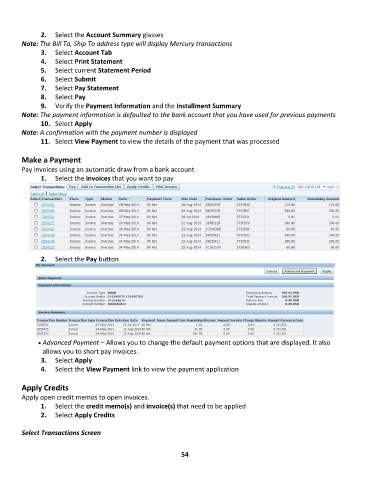
        Pay invoices using an automatic draw from a bank account
               1.  Select the invoices that you want to pay


               2.  Select the Pay button


              • •   Advanced Payment – Allows you to change the default payment options that are displayed. It also
               allows you to short pay invoices.
               3.  Select Apply
               4.  Select the View Payment link to view the payment application

        Apply Credits
        Apply open credit memos to open invoices.
               1.  Select the credit memo(s) and invoice(s) that need to be applied
               2.  Select Apply Credits

        Select Transactions Screen


                                                             54

