


Page 54 - MercNET User's Guide
P. 54
• •   Status – Any Status, closed, open/pending/or overdue
              • •   Transaction Class – All receivables, all transactions, credit memos, debit memos, credit requests,
               invoices, and payments
              • •   Transaction Amount From/To – Enter the specific dollar amounts
              • •   Transaction Date From/To – Enter the specific dates
              • •   Due Date From/To – Enter the specific dates
        Select transactions to be viewed by selecting the Select All link to view all transactions or Select None to
        deselect a transaction you do not want to see.  After selecting the transactions, there are several options to
        choose from:
              • •   Pay – Displays a list of transactions
              • •   Add to Transaction List – Creates a list of transactions to print, apply credits, or make payments.
              • •   Apply Credits – Allows you to apply credit memos to invoices
              • •   Print Invoices – Sends all selected invoices to print queue
              • •   Recalculate – Calculates totals of selected transactions, original dollar amounts, and remaining amount
               due
              • •   Export – Exports transaction details in selected format

        Pay Statement
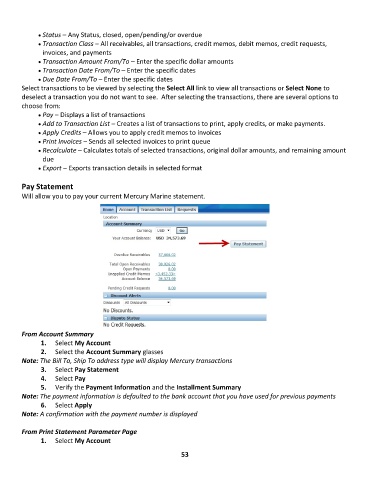
        Will allow you to pay your current Mercury Marine statement.


        From Account Summary
               1.  Select My Account
               2.  Select the Account Summary glasses
        Note: The Bill To, Ship To address type will display Mercury transactions
               3.  Select Pay Statement
               4.  Select Pay
               5.  Verify the Payment Information and the Installment Summary
        Note: The payment information is defaulted to the bank account that you have used for previous payments
               6.  Select Apply
        Note: A confirmation with the payment number is displayed

        From Print Statement Parameter Page
               1.  Select My Account

                                                             53

