


Page 57 - MercNET User's Guide
P. 57
Note: Selecting Refresh may need to be done several times.

               4.  Select the icon (   ) under the output column
        The file is opened, and the transactions are displayed to be printed.

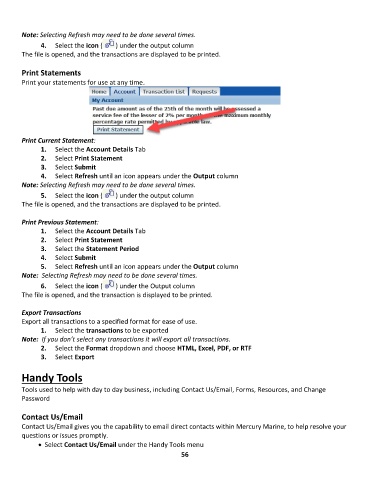
        Print Statements
        Print your statements for use at any time.


        Print Current Statement:
               1 1. .    Select the Account Details Tab
               2 2. .    Select Print Statement
               3 3. .    Select Submit
               4 4. .    Select Refresh until an icon appears under the Output column
        Note: Selecting Refresh may need to be done several times.
               5 5. .    Select the icon (  ) under the output column
        The file is opened, and the transactions are displayed to be printed.

        Print Previous Statement:
               1.  Select the Account Details Tab
               2.  Select Print Statement
               3.  Select the Statement Period
               4.  Select Submit
               5.  Select Refresh until an icon appears under the Output column
        Note:  Selecting Refresh may need to be done several times.
               6.  Select the icon (   ) under the Output column
        The file is opened, and the transaction is displayed to be printed.

        Export Transactions
        Export all transactions to a specified format for ease of use.
               1.  Select the transactions to be exported
        Note:  If you don’t select any transactions it will export all transactions.
               2.  Select the Format dropdown and choose HTML, Excel, PDF, or RTF
               3.  Select Export

        Handy Tools

        Tools used to help with day to day business, including Contact Us/Email, Forms, Resources, and Change
        Password

        Contact Us/Email
        Contact Us/Email gives you the capability to email direct contacts within Mercury Marine, to help resolve your
        questions or issues promptly.
              • •    Select Contact Us/Email under the Handy Tools menu
                                                             56

