


Page 11 - Computing Book 7
P. 11
Data Handling                                                                        Class 7


               Absolute Reference

               An absolute reference is used when we want to keep a cell, a row or a column constant when
               copying a formula. You have to declare it when you create the formula by using the $ (dollar sign).
               This way you create an absolute reference which doesn’t change when it’s copied or “filled”.
                  $E$1        Cell reference will not update while copying or filling.
                  $E1         Only the row reference will update and the column remains the same.
                  E$1         Only column reference will update and row remains the same.

               Format Sheet as Table:
               In Excel, a table is a specially designated range of numbers. This special range of numbers has added
               functionality that other cell ranges do not have. You can have more than one table in a workbook or
               worksheet if you want, and tables can be as large or small as the amount of data you want to work
               with.
               Normally a table is made from adjacent columns of data, with a unique label or heading for each
               column. Each row in the table should have entries organized according to the column headings. You
               should keep your table data adjacent in a block to take advantage of all of Excel’s table features.
               Some Excel features, like filters and PivotTables, will not work correctly if the data is not blocked
               together in adjacent columns as a table.


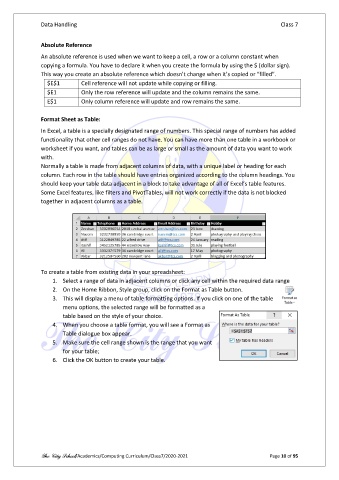
               To create a table from existing data in your spreadsheet:
                   1.  Select a range of data in adjacent columns or click any cell within the required data range
                   2.  On the Home Ribbon, Style group, click on the Format as Table button.
                   3.  This will display a menu of table formatting options. If you click on one of the table
                       menu options, the selected range will be formatted as a
                       table based on the style of your choice.
                   4.  When you choose a table format, you will see a Format as
                       Table dialogue box appear.
                   5.  Make sure the cell range shown is the range that you want
                       for your table;
                   6.  Click the OK button to create your table.


               The City School/Academics/Computing Curriculum/Class7/2020-2021                  Page 10 of 95

