


Page 13 - Computing Book 7
P. 13
Data Handling                                                                        Class 7


               Working with Power and Percentage:

               Power
               In complex calculations, there is more than one part to the formula, the order of the calculations is
               from left to right, but any part of the formula in parentheses will be calculated first.
               The basic calculations and their symbols in MS Excel
                 Multiplication    Power         Division       Addition      Subtraction    Percentage
                      *              ^               /             +               -             %
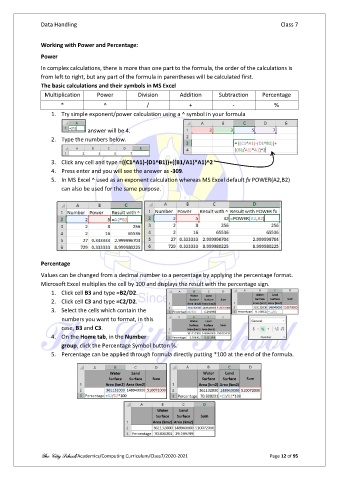
                   1.  Try simple exponent/power calculation using a ^ symbol in your formula


                                answer will be 4.
                   2.  Type the numbers below.


                   3.  Click any cell and type =((C1^A1)-(D1^B1))+((B1/A1)*A1)^2
                   4.  Press enter and you will see the answer as -309.
                   5.  In MS Excel ^ used as an exponent calculation whereas MS Excel default fx POWER(A2,B2)
                       can also be used for the same purpose.


               Percentage

               Values can be changed from a decimal number to a percentage by applying the percentage format.
               Microsoft Excel multiplies the cell by 100 and displays the result with the percentage sign.
                   1.  Click cell B3 and type =B2/D2.
                   2.  Click cell C3 and type =C2/D2.
                   3.  Select the cells which contain the
                       numbers you want to format, in this
                       case, B3 and C3.
                   4.  On the Home tab, in the Number
                       group, click the Percentage Symbol button %.
                   5.  Percentage can be applied through formula directly putting *100 at the end of the formula.


               The City School/Academics/Computing Curriculum/Class7/2020-2021                  Page 12 of 95

