


Page 12 - Computing Book 7
P. 12
Data Handling                                                                        Class 7


               Advanced Filters and Sort Features:

               Sorting Data
               If you have a lot of records, it’s a good idea to sort them because this way it will be
               easier to find what you are looking for. You can put the data in alphabetical order for
               text fields or start from the smallest to the largest (and vice versa) for numbers.
                   1.  Choose a column that you want to sort by
                   2.  Click on the Sort & Filter option on the Home Tab and select the order either Ascending or
                       Descending as per your necessity.
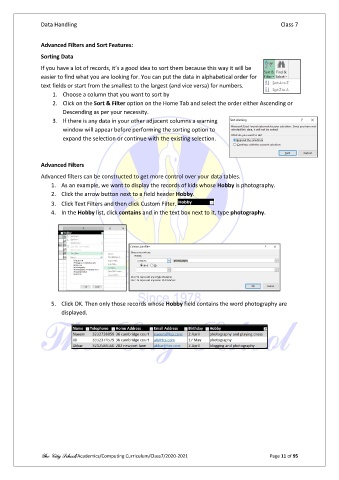
                   3.  If there is any data in your other adjacent columns a warning
                       window will appear before performing the sorting option to
                       expand the selection or continue with the existing selection.


               Advanced Filters
               Advanced filters can be constructed to get more control over your data tables.
                   1.  As an example, we want to display the records of kids whose Hobby is photography.
                   2.  Click the arrow button next to a field header Hobby.
                   3.  Click Text Filters and then click Custom Filter.
                   4.  In the Hobby list, click contains and in the text box next to it, type photography.


                   5.  Click OK. Then only those records whose Hobby field contains the word photography are
                       displayed.


               The City School/Academics/Computing Curriculum/Class7/2020-2021                  Page 11 of 95

