


Page 22 - Computing Book 7
P. 22
Data Handling                                                                        Class 7


               Note: Just like with normal spreadsheet data, you can sort the data in a PivotTable using the Sort &
               Filter command in the Home tab. You can also apply any type of Number Formatting you want. For
               example, you may want to change the Number Format to Currency. However, be aware that some
               types of formatting may disappear when you modify the PivotTable.


               If you change any of the data in your source worksheet, the PivotTable will not update
               automatically. To manually update it, select the PivotTable and then go to Analyse > Refresh.

               Pivoting Data:

               One of the best things about PivotTables is that they can quickly pivot—or reorganize—data,
               allowing you to look at your worksheet data in different ways. Pivoting data can help you answer
               different questions and even experiment with the data to discover new trends and patterns.

               In our example, we used the PivotTable to answer the question: What is the total amount sold by
               each salesperson? But now we'd like to answer a new question: What is the total amount sold in
               each month? We can do this by simply changing the field in the Rows area.

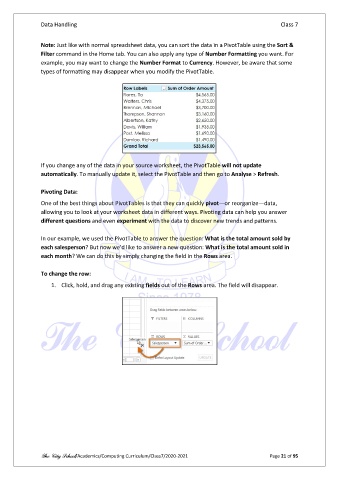
               To change the row:

                   1.  Click, hold, and drag any existing fields out of the Rows area. The field will disappear.


               The City School/Academics/Computing Curriculum/Class7/2020-2021                  Page 21 of 95

