


Page 21 - Computing Book 7
P. 21
Data Handling                                                                        Class 7


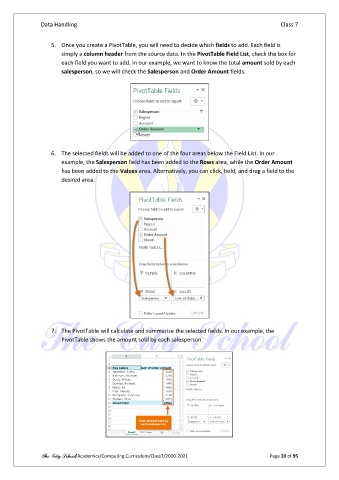
                   5.  Once you create a PivotTable, you will need to decide which fields to add. Each field is
                       simply a column header from the source data. In the PivotTable Field List, check the box for
                       each field you want to add. In our example, we want to know the total amount sold by each
                       salesperson, so we will check the Salesperson and Order Amount fields.


                   6.  The selected fields will be added to one of the four areas below the Field List. In our
                       example, the Salesperson field has been added to the Rows area, while the Order Amount
                       has been added to the Values area. Alternatively, you can click, hold, and drag a field to the
                       desired area.


                   7.  The PivotTable will calculate and summarize the selected fields. In our example, the
                       PivotTable shows the amount sold by each salesperson.


               The City School/Academics/Computing Curriculum/Class7/2020-2021                  Page 20 of 95

