


Page 87 - Computing Book 7
P. 87
Presenting Your Ideas – MS Sway                                                      Class 7


               Change the Style of Your Sway

               Sway lets you focus on what you’re trying
               to communicate by taking care of the
               formatting, design, and layout of your
               content. You can keep Sway’s suggested
               default design, select and apply your own,
               and even customize the layout.
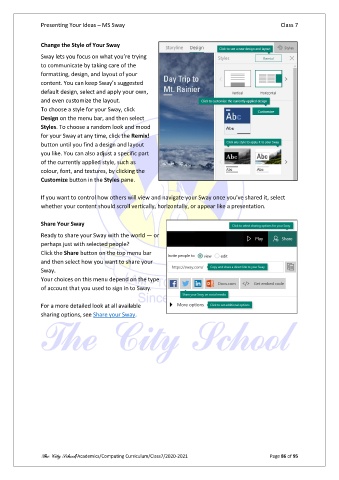
               To choose a style for your Sway, click
               Design on the menu bar, and then select
               Styles. To choose a random look and mood
               for your Sway at any time, click the Remix!
               button until you find a design and layout
               you like. You can also adjust a specific part
               of the currently applied style, such as
               colour, font, and textures, by clicking the
               Customize button in the Styles pane.

               If you want to control how others will view and navigate your Sway once you’ve shared it, select
               whether your content should scroll vertically, horizontally, or appear like a presentation.

               Share Your Sway

               Ready to share your Sway with the world — or
               perhaps just with selected people?
               Click the Share button on the top menu bar
               and then select how you want to share your
               Sway.
               Your choices on this menu depend on the type
               of account that you used to sign in to Sway.

               For a more detailed look at all available
               sharing options, see Share your Sway.


               The City School/Academics/Computing Curriculum/Class7/2020-2021                  Page 86 of 95

