


Page 43 - Computing book 6
P. 43
Document Creation                                                                    Class 6


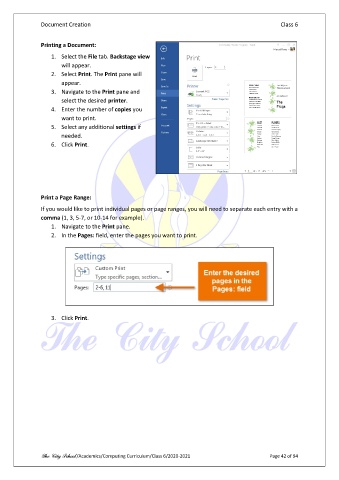
               Printing a Document:

                   1.  Select the File tab. Backstage view
                       will appear.
                   2.  Select Print. The Print pane will
                       appear.
                   3.  Navigate to the Print pane and
                       select the desired printer.
                   4.  Enter the number of copies you
                       want to print.
                   5.  Select any additional settings if
                       needed.
                   6.  Click Print.


               Print a Page Range:
               If you would like to print individual pages or page ranges, you will need to separate each entry with a
               comma (1, 3, 5-7, or 10-14 for example).
                   1.  Navigate to the Print pane.
                   2.  In the Pages: field, enter the pages you want to print.


                   3.  Click Print.


               The City School /Academics/Computing Curriculum/Class 6/2020-2021                Page 42 of 94

