


Page 77 - Computing book 6
P. 77
Handling Databases – MS Access                                                       Class 6


               Reports:

               Reports offer a way to view, format, and summarize the information in
               your Microsoft Access database. For example, you can create a simple
               report of phone numbers for all your contacts.


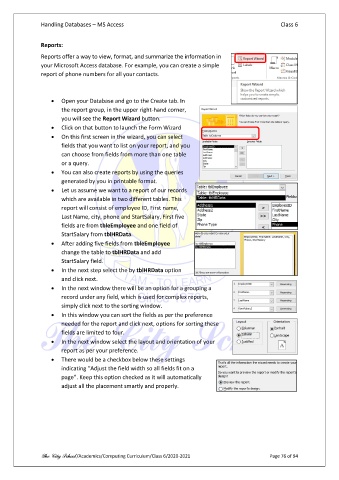
                   •  Open your Database and go to the Create tab. In
                       the report group, in the upper right-hand corner,
                       you will see the Report Wizard button.
                   •  Click on that button to launch the Form Wizard
                   •  On this first screen in the wizard, you can select
                       fields that you want to list on your report, and you
                       can choose from fields from more than one table
                       or a query.
                   •  You can also create reports by using the queries
                       generated by you in printable format.
                   •  Let us assume we want to a report of our records
                       which are available in two different tables. This
                       report will consist of employee ID, First name,
                       Last Name, city, phone and StartSalary. First five
                       fields are from tbleEmployee and one field of
                       StartSalary from tblHRData.
                   •  After adding five fields from tbleEmployee
                       change the table to tblHRData and add
                       StartSalary field.
                   •  In the next step select the by tblHRData option
                       and click next.
                   •  In the next window there will be an option for a grouping a
                       record under any field, which is used for complex reports,
                       simply click next to the sorting window.
                   •  In this window you can sort the fields as per the preference
                       needed for the report and click next, options for sorting these
                       fields are limited to four.
                   •  In the next window select the layout and orientation of your
                       report as per your preference.
                   •  There would be a checkbox below these settings
                       indicating “Adjust the field width so all fields fit on a
                       page”. Keep this option checked as it will automatically
                       adjust all the placement smartly and properly.


               The City School /Academics/Computing Curriculum/Class 6/2020-2021                Page 76 of 94

