


Page 73 - Computing book 6
P. 73
Handling Databases – MS Access                                                       Class 6


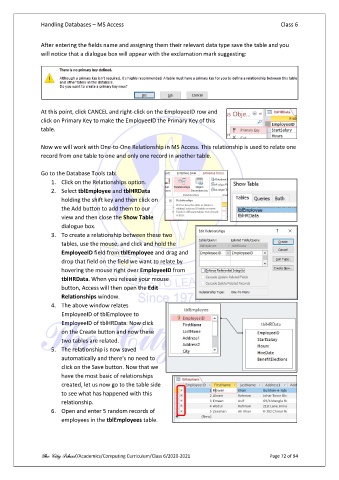
               After entering the fields name and assigning them their relevant data type save the table and you
               will notice that a dialogue box will appear with the exclamation mark suggesting:


               At this point, click CANCEL and right-click on the EmployeeID row and
               click on Primary Key to make the EmployeeID the Primary Key of this
               table.

               Now we will work with One-to-One Relationship in MS Access. This relationship is used to relate one
               record from one table to one and only one record in another table.

               Go to the Database Tools tab:
                   1.  Click on the Relationships option.
                   2.  Select tblEmployee and tblHRData
                       holding the shift key and then click on
                       the Add button to add them to our
                       view and then close the Show Table
                       dialogue box.
                   3.  To create a relationship between these two
                       tables, use the mouse, and click and hold the
                       EmployeeID field from tblEmployee and drag and
                       drop that field on the field we want to relate by
                       hovering the mouse right over EmployeeID from
                       tblHRData. When you release your mouse
                       button, Access will then open the Edit
                       Relationships window.
                   4.  The above window relates
                       EmployeeID of tblEmployee to
                       EmployeeID of tblHRData. Now click
                       on the Create button and now these
                       two tables are related.
                   5.  The relationship is now saved
                       automatically and there's no need to
                       click on the Save button. Now that we
                       have the most basic of relationships
                       created, let us now go to the table side
                       to see what has happened with this
                       relationship.
                   6.  Open and enter 5 random records of
                       employees in the tblEmployees table.


               The City School /Academics/Computing Curriculum/Class 6/2020-2021                Page 72 of 94

