


Page 74 - Computing book 6
P. 74
Handling Databases – MS Access                                                       Class 6


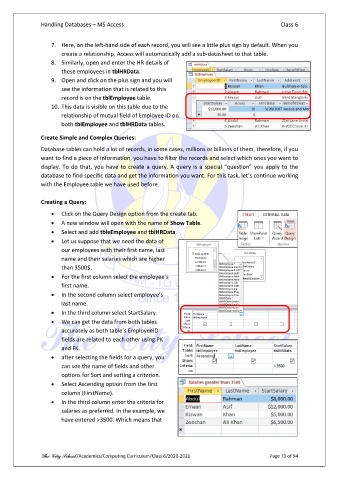
                   7.  Here, on the left-hand side of each record, you will see a little plus sign by default. When you
                       create a relationship, Access will automatically add a sub-datasheet to that table.
                   8.  Similarly, open and enter the HR details of
                       these employees in tblHRData.
                   9.  Open and click on the plus sign and you will
                       see the information that is related to this
                       record is on the tblEmployee table.
                   10. This data is visible on this table due to the
                       relationship of mutual field of Employee ID on
                       both tblEmployee and tblHRData tables.

               Create Simple and Complex Queries:
               Database tables can hold a lot of records, in some cases, millions or billions of them, therefore, if you
               want to find a piece of information, you have to filter the records and select which ones you want to
               display. To do that, you have to create a query. A query is a special “question” you apply to the
               database to find specific data and get the information you want. For this task, let’s continue working
               with the Employee table we have used before.

               Creating a Query:
                   •  Click on the Query Design option from the create tab.
                   •  A new window will open with the name of Show Table.
                   •  Select and add tbleEmployee and tblHRData.
                   •  Let us suppose that we need the data of
                       our employees with their first name, last
                       name and their salaries which are higher
                       than 3500$.
                   •  For the first column select the employee’s
                       first name.
                   •  In the second column select employee’s
                       last name.
                   •  In the third column select StartSalary.
                   •  We can get the data from both tables
                       accurately as both table’s EmployeeID
                       fields are related to each other using PK
                       and FK.
                   •  after selecting the fields for a query, you
                       can see the name of fields and other
                       options for Sort and setting a criterion.
                   •  Select Ascending option from the first
                       column (FirstName).
                   •  In the third column enter the criteria for
                       salaries as preferred. In the example, we
                       have entered >3500. Which means that


               The City School /Academics/Computing Curriculum/Class 6/2020-2021                Page 73 of 94

