


Page 75 - Computing book 6
P. 75
Handling Databases – MS Access                                                       Class 6


                       employees who have salaries greater than 3500 will be listed in ascending order after
                       executing the queries.
                   •  Save the query by using the right click on the query tab and save it with any preferred name.
                       In the example, we have saved the query with the name of Salaries Greater than 3500.
                   •  Close the tab and run the query from the objects panel.
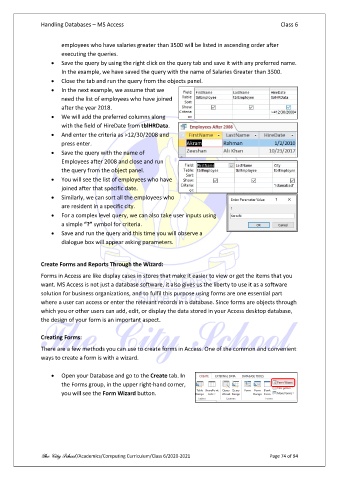
                   •  In the next example, we assume that we
                       need the list of employees who have joined
                       after the year 2018.
                   •  We will add the preferred columns along
                       with the field of HireDate from tblHRData.
                   •  And enter the criteria as >12/30/2008 and
                       press enter.
                   •  Save the query with the name of
                       Employees after 2008 and close and run
                       the query from the object panel.
                   •  You will see the list of employees who have
                       joined after that specific date.
                   •  Similarly, we can sort all the employees who
                       are resident in a specific city.
                   •  For a complex level query, we can also take user inputs using
                       a simple “?” symbol for criteria.
                   •  Save and run the query and this time you will observe a
                       dialogue box will appear asking parameters.


               Create Forms and Reports Through the Wizard:

               Forms in Access are like display cases in stores that make it easier to view or get the items that you
               want. MS Access is not just a database software, it also gives us the liberty to use it as a software
               solution for business organizations, and to fulfil this purpose using forms are one essential part
               where a user can access or enter the relevant records in a database. Since forms are objects through
               which you or other users can add, edit, or display the data stored in your Access desktop database,
               the design of your form is an important aspect.

               Creating Forms:

               There are a few methods you can use to create forms in Access. One of the common and convenient
               ways to create a form is with a wizard.

                   •  Open your Database and go to the Create tab. In
                       the Forms group, in the upper right-hand corner,
                       you will see the Form Wizard button.


               The City School /Academics/Computing Curriculum/Class 6/2020-2021                Page 74 of 94

